Compatibility
Creative Cloud CC2019, 64-bit for Windows 10/11 and MacOS (Intel chipsets only).
Downloads
Right-click to download (save link as):
➢7th Adobe AfterEffects plugin (Windows)
Formats supported
Format |
Import |
Export |
|---|---|---|
8-bit YCbCr 4:2:2 |
❌ |
✔️ |
10-bit YCbCr 4:2:2 |
✔️ |
✔️ |

1.Download and copy 7thAE.aex file should be copied to C:\Program Files\Adobe\Common\Plug-ins\7.0\MediaCore 2.Restart After Effects
|
Before CC 2019: For a Mac installation using the latest Creative Cloud release, the 7thAE.plugin package should be copied to the following After Effects plugin location: /Library/Application Support/Adobe/Common/Plug-ins/[CS version]/MediaCore/ CC2019, verified with Catalina 10.15.1: Add 7thSense plugin to path: /Applications/Adobe After Effects CC 2019/Plug-ins/Extensions Start After Effects. It will fail, but click Cancel instead of moving it to the Bin. Shutdown After Effects. Go to the ‘Security & Privacy’ panel, ‘General’ tab. This will show that the plugin was recently prevented from running. Click ‘Allow Anyway’. Run After Effects again. This time an extra option of ‘Open’ is shown, select this. After clicking open after effects will run and the plugin is seen. Next time you start After Effects, you shouldn’t see the prompt but the plugin should be available for use.
|
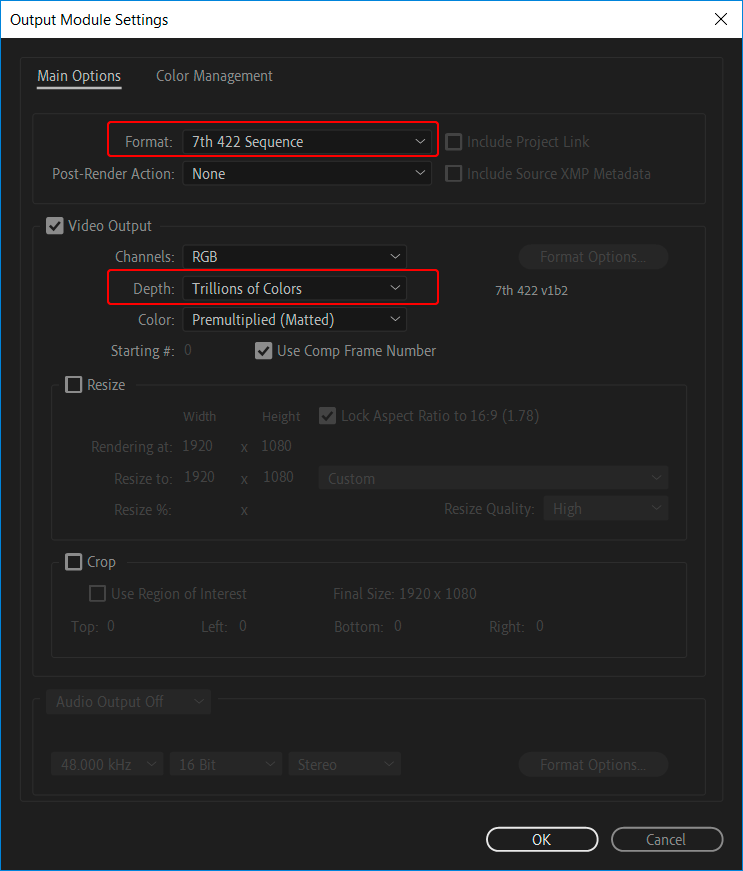
1.If you will be exporting at 10-bit color depth, it's important to increase the project's working color depth in File --> Project Settings --> Color to "16 bits per channel" (the default being "8 bits per channel"). 2.Add your Composition to the Render Queue and open that Queue item's Output Module Settings. 3.Select "7th 422 Sequence" as the Format. (this is the only .7th format selection available). 4.To differentiate between 8-bit and 10-bit output options: either select Video Output --> Depth:" Millions of Colors" (for 8-bit) or "Trillions of Colors" (for 10-bit)
IMPORTANT CONSIDERATION: AE will automatically applies some "Interpret Footage"settings to every given imported clip (and the Composition created based on those initial clip settings). For image sequences, it's important to review that both the Frame Rate and Color Space settings are appropriate. .7th files do not contain color space metadata, only the color bit values. So it's important to communicate with the media producer what color space the data was written to be interpreted as (e.g. Rec709). Also beware that After Effects is a color-managed workspace (configurable in File --> Project Settings -->Color). This means that all footage is conformed from its interpreted color space to the working color space for preview, composition, and ultimately export.
|